Stephen Malinowski created this amazing visualization of Beethoven’s 5th Symphony. Each color represents an instrument.
[YouTube | Also check out this video]
Stephen Malinowski created this amazing visualization of Beethoven’s 5th Symphony. Each color represents an instrument.
[YouTube | Also check out this video]
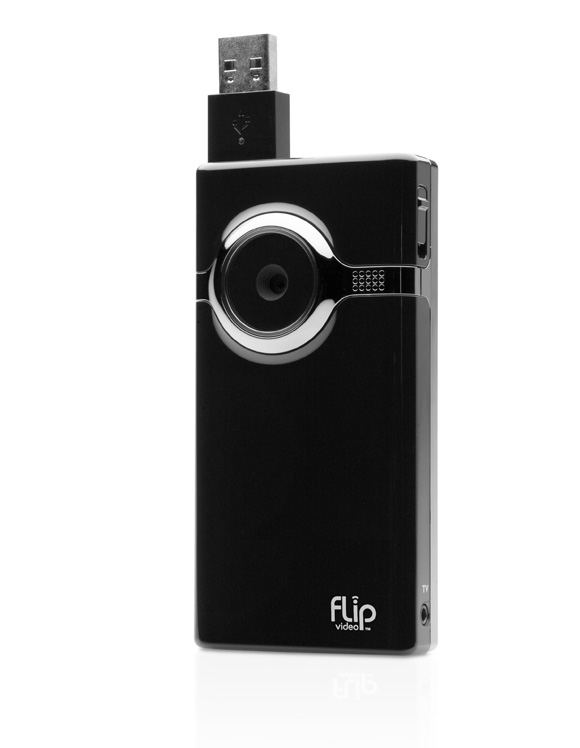
I’ve stopped holding out for the perfect video camera and purchased a Flip Mino HD camcorder. At some point I decided it was better to have low fi videos of my life than to have none. Full res 1080p videos that don’t exist aren’t very fun… So here’s a couple quick thoughts on the Flip Mino HD:
Shooting Video with the Flip:
The mino is very easy to use. All you have to do is push the giant red button and you’re shooting video. There are no settings and that is an awesome feature. You can toss it in your pocket and go because it’s super light small. It’s so easy to use that I’ve started using it to send that you videos instead of thank you notes… It’s perfect for little off the cuff youtube style videos.
Quality:
The quality is crap. Get over it and have fun with it instead. For those who want to know the lack of image stabilizer really hurts the the quality of the video on playback. If you need to shoot some quick video and put it online quickly this is the best solution for you. If you need super high quality video that will be viewed on large screens get something else.
FlipShare Software:
The software installs right off the device itself. No install disk bullshit, no drivers, none of that crap. It’s a huge plus to be able to get going quickly.
Pros:
Cons:
Conclusion:
It’s amazingly rare to find a piece of technology (excluding Apple products) that has good hardware-software integration or whatever that’s called. 99% of the time the device kicks ass and the software is complete shit. In this instance both the device and the software do exactly what they should and nothing more. What’s even more rare is something simple and fun to use with no feature bloat, yet.
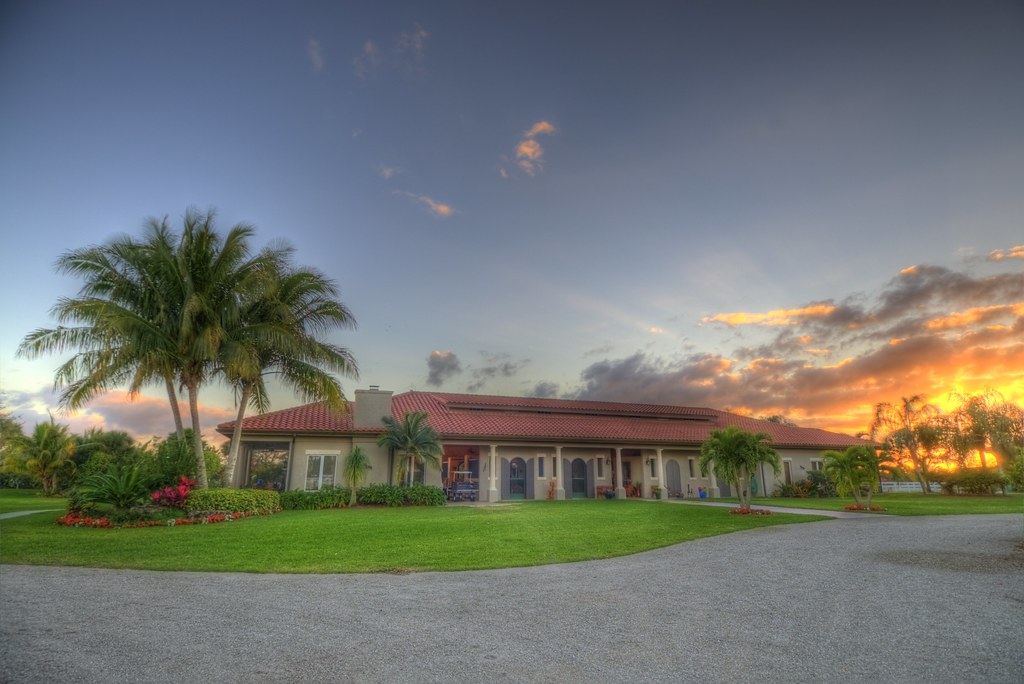
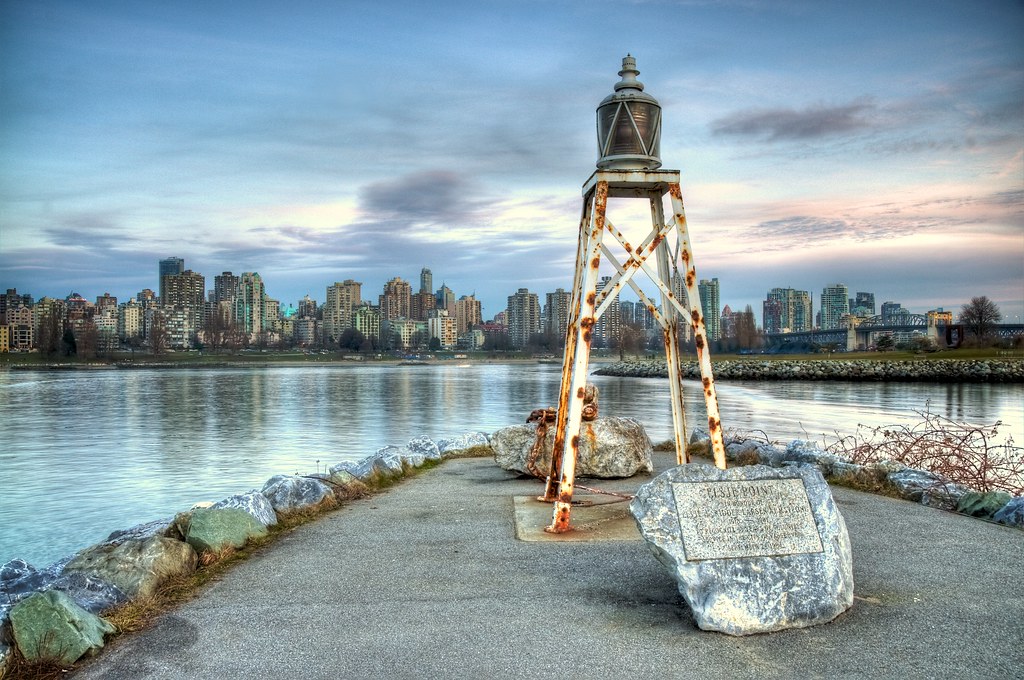
Here are some High Dynamic Range photographs I’ve taken. Click on any photo to see it on Flickr.






















[Flickr]

I’m having fun blogging again. I’m not worrying about what anyone thinks, or how bad my writing is… I’m just putting stuff out there that I find interesting. Kinda nice.
[photo by ishrona]
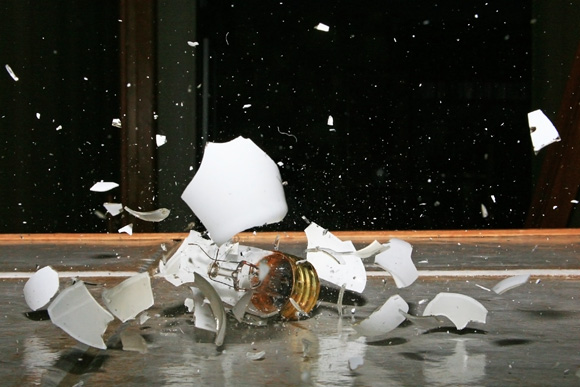
Here’s a little ‘pro tip’ for you:
Batching
If you’re not already, start task batching stuff you need to get done as much as possible. Do you empty your garbage each time you put a piece of trash in it? Do you do your laundry every time you toss a dirty item into it? Obviously not. It’s clearly a waste of time in these cases because of the time it takes to switch back and forth from task to task.
Saving Time
Think about this in terms of basic productivity. Are you reading and responding to emails and calls as they come in? Does it take away from the work you are doing at the time? You might want to start batching that stuff and then attack each batch with the agility of a ninja. Think about batching your errands, emails, calls, meetings, bills, etc etc.. It will save you time and will help you focus properly on what you actually want to be doing instead of being constantly disrupted by inbound stuff. If you’re not task batching you might as well be taking out the trash every time you get a new email.
This dovetails nicely with inbox zero, and GTD.
[Photo by laszlo-photo]
These are photos I took at the Tesla Motors dealership in Los Angeles. The dealership is staffed by incredibly rude people. Well except for the mechanic, he was cool.


11163 Santa Monica Blvd
Los Angeles, CA 90025, USA
(310) 473-8337
[Tesla]
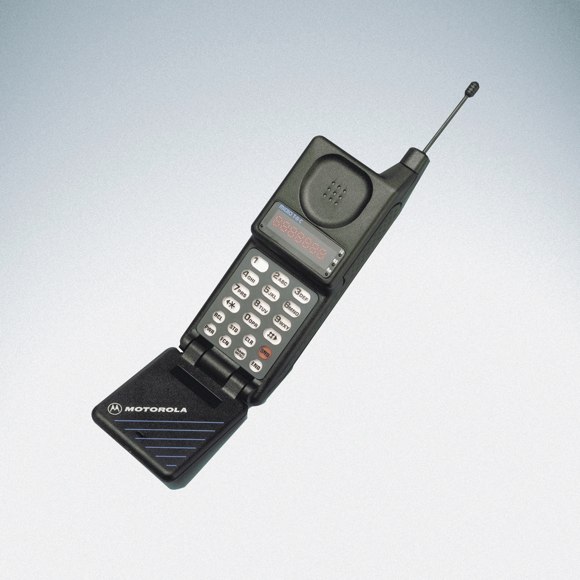
In 1993 I was thirteen years old. I was in a boarding school with no internet connectivity. There we’re no network connections in the dorm rooms. After reading about this new thing called the World Wide Web I really wanted to get online. I was rockin a Dell Pentium 120 with whopping 16MB of ram and 4GB of storage! She was a fast machine for her the time.
In order to connect I used an analog Motorola mobile phone tethered to an analog/digital converter box the size of a brick. I would then log into an ISP by dialing in using the phone. The connection was obviously extremely slow and flaky but I was tethering in 1993. That pretty much makes me a giant freakin nerd.
Fast forward to today….
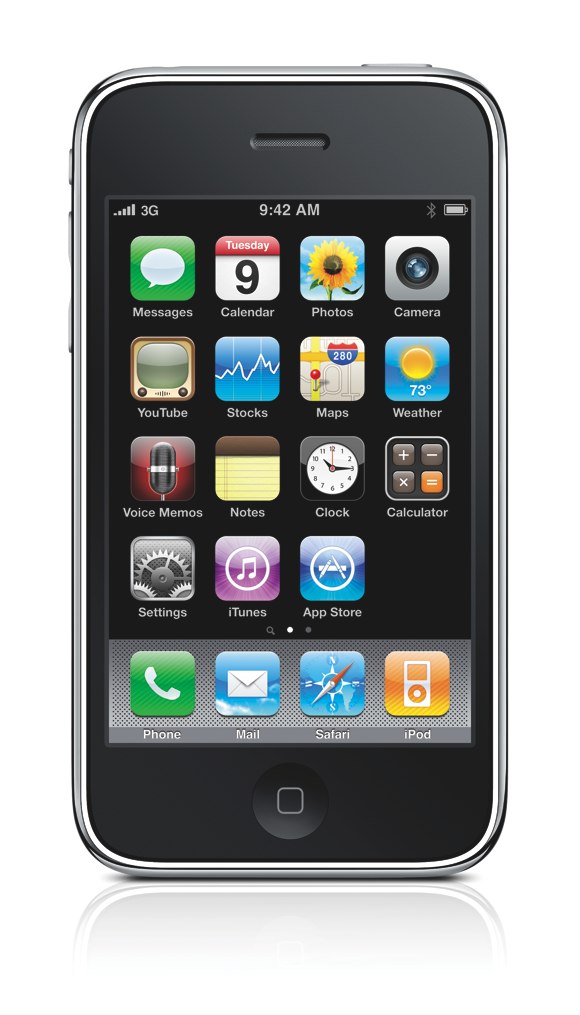
I now connect from wherever I want. I tether my mobile phone to my laptop using a wireless bluetooth connection and the 3g cellular network. My cell phone alone has more memory and processing power than my entire desktop computer in 1993. I can be working from anywhere that has cell phone connectivity. In fact I’m writing this from a cafe that doesn’t even have Wifi…
I suppose this is an example of Moore’s Law and Gilder’s Law working together hand in hand?
Here are some instructions on how to tether your iPhone 3g or 3gs:
How to use your iPhone as a modem:
Connect via USB: Connect your computer to iPhone using the Dock Connector to USB cable. In your computer’s Network services settings, choose iPhone. On a Mac, a pop-up window appears the first time you connect, saying “A new network interface has been detected.” Click Network Preferences, configure the network settings for iPhone, then click Apply. On a PC, use the Network Control Panel to select and configure the iPhone connection.
Connect via Bluetooth: On iPhone, choose Settings > General > Bluetooth and turn on Bluetooth. Then refer to the documentation that came with your computer system software to pair and connect iPhone with your computer.
When you are connected, a blue band appears at the top of the screen. Tethering remains on when you connect with USB, even when you aren’t actively using the Internet connection.
Check your cellular data network usage:
In Settings, choose General > Usage.
[Listen here: Friday Mixtape]